


Laravel Docker Lessons · Lesson 1
This lesson documents the Docker setup I created for the docker-laravel application: Laravel 12 running inside one PHP 8.2 + Apache container. It is the first entry in a practical series in the Build & Learn blog section. The goal is to understand the files already in the project, prepare Laravel's dependencies, and start the application using Docker Compose.
The configuration uses a host-mounted checkout and local HTTP access. It gives us a foundation for learning container deployment; it does not yet define a complete production release pipeline.
1. Understand the application and request path
The service is named web. Docker builds its image from the root Dockerfile and names that image my-laravel-app. A browser request to http://localhost:8081 reaches Apache on port 80 inside the container. Apache serves Laravel from /var/www/html/public, with public/index.php as the application's front controller.
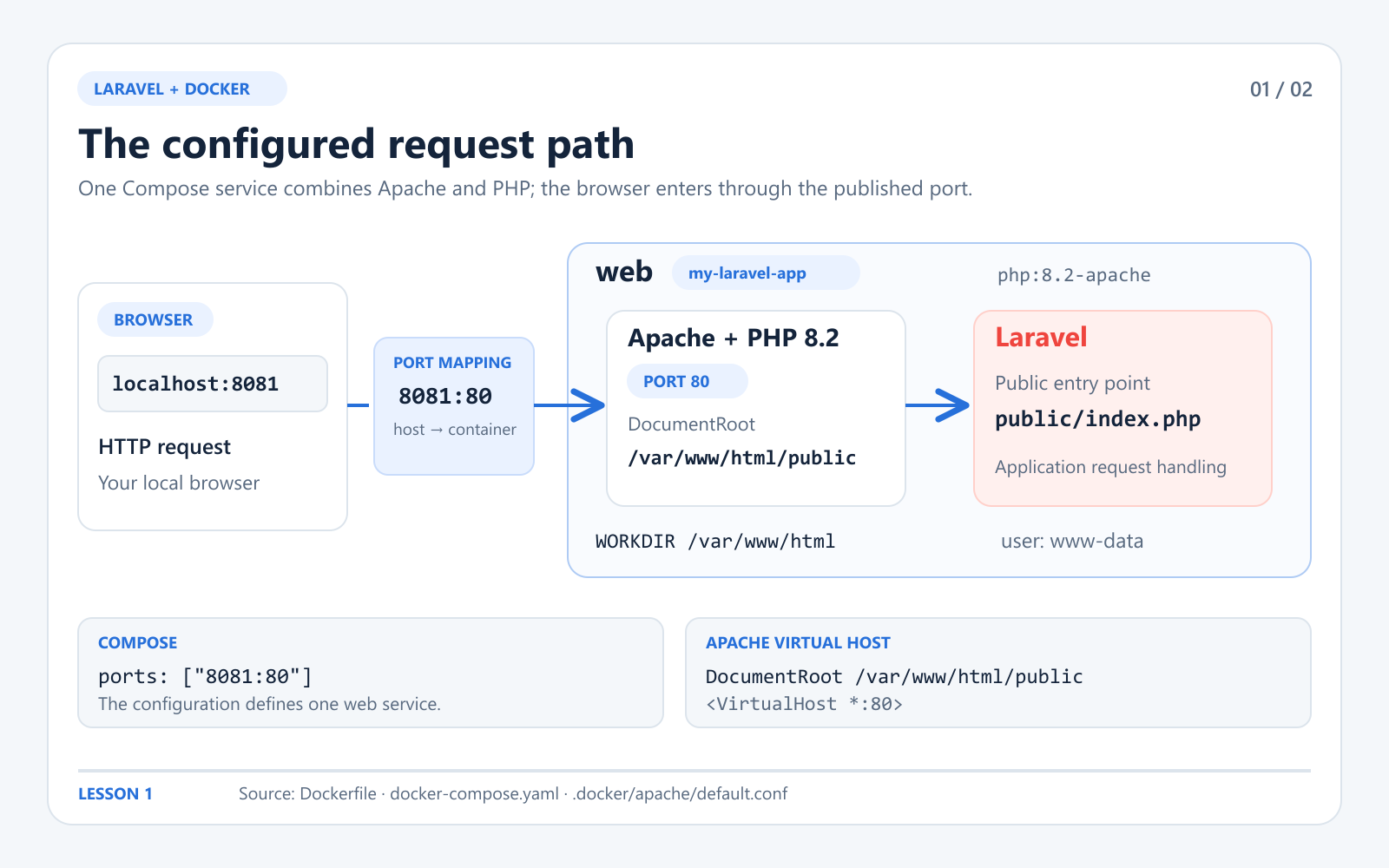
The actual setup has one service: PHP and Apache run together in the web container.
The files that define this setup are:
docker-laravel/
├── Dockerfile
├── docker-compose.yaml
├── .docker/
│   └── apache/
│       └── default.conf
├── public/
│   ├── index.php
│   └── .htaccess
├── storage/
└── bootstrap/cache/
composer.json requires PHP ^8.2 and Laravel ^12.0. The project's lock file resolves Laravel to 12.69.3. The Compose file contains no separate database, Redis, queue-worker, or frontend-development service.
2. Read the existing Dockerfile
Here is the project's Dockerfile, reproduced from the implementation:
FROM php:8.2-apache

WORKDIR /var/www/html

RUN apt-get update && apt-get install -y \
    libzip-dev \
    unzip \
    && docker-php-ext-install zip pdo_mysql

COPY . /var/www/html

RUN chown -R www-data:www-data /var/www/html
RUN chown -R www-data:www-data /var/www/html/storage /var/www/html/bootstrap/cache
RUN chmod -R 775 /var/www/html/storage /var/www/html/bootstrap/cache

EXPOSE 80
php:8.2-apache supplies PHP and Apache in one image. WORKDIR sets the directory used by later instructions and container commands. The package-install step adds libzip-dev and unzip, then builds the PHP zip and pdo_mysql extensions.
COPY . /var/www/html includes the application checkout in the image. The ownership commands assign the copied files to Apache's www-data account and make storage and bootstrap/cache writable with mode 775. These directories hold logs, sessions, compiled views, and Laravel's cached bootstrap files.
EXPOSE 80 documents the container's HTTP port. The host port is published by Compose. The Dockerfile inherits the base image's Apache startup command; it adds no custom entrypoint, dependency-install command, key generation, or migration step.
Composer and Node.js are not installed by this Dockerfile. Application dependencies and compiled frontend assets must therefore be prepared outside this container with compatible host tools.
3. Read the existing Compose configuration
version: '3'

services:
  web:
    build:
      context: .
      dockerfile: Dockerfile
    image: my-laravel-app
    ports:
      - "8081:80"
    volumes:
      - .:/var/www/html
      - /var/www/html/storage
      - /var/www/html/bootstrap/cache
      - ./.docker/apache/default.conf:/etc/apache2/sites-enabled/000-default.conf
    working_dir: /var/www/html
    user: "www-data"
build.context: .uses the project root as the build context, anddockerfile: Dockerfileselects the file above.image: my-laravel-appnames the built image; it does not push that image to a registry.8081:80maps host port 8081 to Apache's port 80.working_dir: /var/www/htmlmakes that directory the default for commands such asdocker compose exec web php artisan ....user: "www-data"selects the runtime account. Runtime permissions still depend on the mounted files and the host platform.
The file retains version: '3'. Modern Docker Compose reports that field as obsolete and ignores it; the service configuration still resolves. No explicit restart policy, health check, or named volume is declared.
How the four mounts work
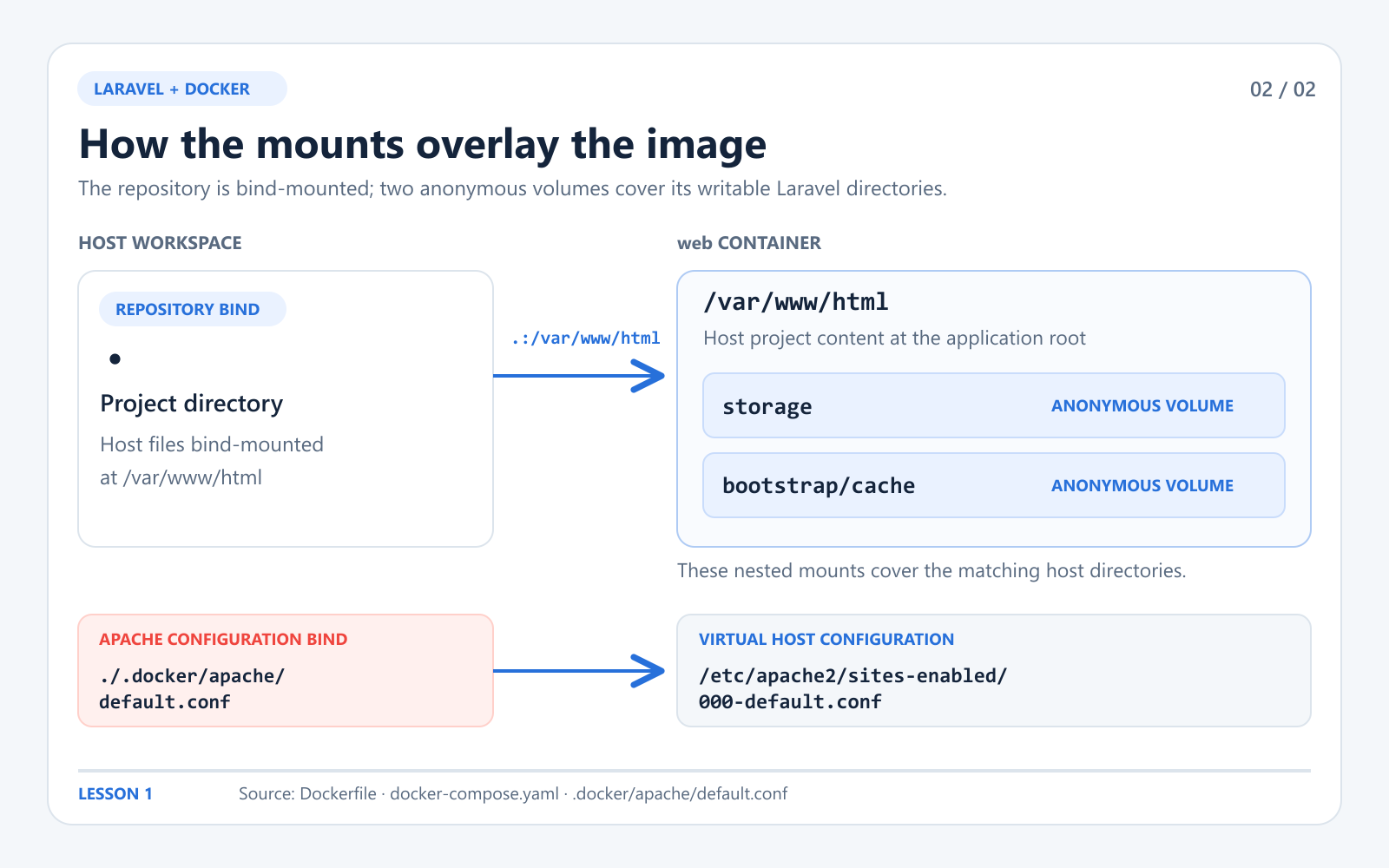
The root bind mount shares the checkout; two anonymous volumes overlay Laravel's writable directories.
.:/var/www/html is a bind mount. At runtime it overlays the image's application directory with the host checkout, so PHP source changes are immediately visible. The host's vendor directory and built assets are also visible through this mount. Ownership set during image build does not automatically rewrite ownership of the host files.
/var/www/html/storage and /var/www/html/bootstrap/cache are anonymous Docker volumes because their entries specify only container paths. They overlay those two subdirectories. Logs and cache files written there do not simply appear in the equivalent host directories. Anonymous volumes can outlive a container, but this file gives them no stable names; a later deployment may attach different volumes. Treat retained data deliberately when recreating services.
The final bind mount places .docker/apache/default.conf at Apache's enabled-site path, /etc/apache2/sites-enabled/000-default.conf. The project directory, database files, and environment file remain supplied by the host checkout.
4. Serve Laravel through Apache's public directory
The mounted virtual-host file contains:
<VirtualHost *:80>
    DocumentRoot /var/www/html/public

    <Directory /var/www/html>
        AllowOverride All
    </Directory>
</VirtualHost>
The DocumentRoot points at Laravel's public directory. This is where the HTTP entrypoint and public assets live. The AllowOverride All directive allows per-directory rules such as the existing public/.htaccess to take effect.
Laravel's .htaccess uses mod_rewrite to send requests for paths that are not existing files or directories to index.php. There is no a2enmod rewrite instruction in this project's Dockerfile, so allowing overrides is not evidence that rewriting is enabled. Check the loaded modules before assuming every Laravel route works:
docker compose exec web apache2ctl -MLook for rewrite_module. If it is absent, enabling that module in the image is a required follow-up for rewritten routes. That change is not part of the configuration documented in this lesson.
5. Prepare the checkout before starting Docker
Use Docker Desktop with its Linux engine running, Docker Compose, PHP 8.2 or newer, Composer, and Node.js 20.19+ on the 20.x line or 22.12+. Those Node requirements come from the installed Vite 7 and Laravel Vite plugin packages. Run the following preparation commands from the application root. The Docker image does not perform these steps for you.
First, create an environment file only when the checkout does not already have one. In PowerShell:
if (-not (Test-Path .env)) { Copy-Item .env.example .env }Install the locked PHP dependencies with a PHP-compatible Composer executable:
php -v
composer install
When creating a new local environment whose APP_KEY is empty, generate its key once:
php artisan key:generateThe checked-out local environment uses SQLite and file sessions. The example environment instead uses database-backed sessions, cache, and queues. A database/database.sqlite file exists in this project, and the Apache PHP base image includes SQLite PDO support. Installing pdo_mysql does not switch the application to MySQL or create a database service.
For a fresh SQLite checkout without its database file, create it before running migrations:
if (-not (Test-Path database/database.sqlite)) {
    New-Item -ItemType File -Path database/database.sqlite | Out-Null
}
Apply the existing migrations on the prepared local database. They create the users/session, cache, and queue tables used by Laravel's configured drivers:
php artisan migrateIf the application generates absolute local URLs, set the local APP_URL to match the address you use, such as http://localhost:8081. That is a local environment choice; Compose's 8081:80 mapping is what exposes the container.
The project declares npm run build for Vite assets. To prepare those assets using the existing lock file:
npm ci
npm run build
There is no Vite service or Vite port mapping in this Compose file. The default Laravel welcome template has a fallback stylesheet when no build manifest or hot file exists, so seeing the welcome page alone does not prove the frontend asset build has run.
6. Build, start, and inspect the service
Validate the service list, then build and start the container:
docker compose config --services
docker compose up -d --build
docker compose ps
docker compose logs --tail=100 web
The service-list command resolves web. Open http://localhost:8081 after the container starts. Useful checks inside the existing service are:
docker compose exec web php -v
docker compose exec web php -m
docker compose exec web php artisan migrate:status
docker compose exec web apache2ctl -M
Inspect php -m for the application's database driver and the installed zip extension. If Laravel reports a write-permission error, inspect the mounted storage/cache paths rather than assuming the Dockerfile's build-time ownership commands changed the host checkout. Rewritten-route failures require checking mod_rewrite as described above.
SQLite also needs write access to both its file and containing directory. These checks should succeed for the configured www-data runtime account:
docker compose exec web test -w /var/www/html/database/database.sqlite
docker compose exec web test -w /var/www/html/database
docker compose exec web test -w /var/www/html/storage
docker compose exec web test -w /var/www/html/bootstrap/cache
To stop the application temporarily:
docker compose stopTo remove the service container and its Compose network:
docker compose downReview the anonymous volumes and any data you need before recreating the environment. The project has no named-volume backup or restore workflow.
7. What this first lesson establishes
This implementation separates the image definition, service configuration, and Apache virtual host into three small files. PHP and Apache run together; port 8081 exposes the application; the checkout supplies the runtime source; and dedicated anonymous mounts hold Laravel's writable storage and cache directories.
The current project has no .dockerignore. Its COPY . instruction therefore includes whatever is in the build context, including local environment files and dependency folders. This local learning image should not be distributed as a production artifact without addressing that build context. HTTPS, a release-specific image build, backups, and a queue-worker service are also outside the implemented setup.
During this review, Compose successfully resolved the single web service. Docker Desktop's Linux engine was unavailable, so a running container and HTTP response were not verified. The startup and diagnostic commands above are the steps to check this configuration on a machine with a running Docker engine.
Future entries in Laravel Docker Lessons will continue in the same Build & Learn blog section as the implementation develops.
References
The project files are the source of truth for the configuration shown here. For the underlying behavior, see Docker Compose's application model and commands, Docker bind mounts, Docker volumes, the official PHP 8.2 image source, and Laravel 12 deployment documentation.
Get the matching lesson source
Browse the lesson-1 snapshot for the Dockerfile, Compose file and Apache configuration discussed here. The repository's main branch contains later lessons, so it may differ from the files in this guide.
Use the course repository lesson index to select a lesson tag, and read the written correction notes before following historical snapshots.